
Copying all DBeaver configuration from one computer to another
This article appeared first at techtavern.wordpress.com.
This article explains how to copy your current DBeaver connection from one computer to another.
Instead of installing all drivers again and instead of creating your connections from scratch, it is actually very simple to copy the DBeaver configuration from one computer to another.
First, discover where the configuration is stored on the source computer. You can check this easily the the Preferences: Menu -> Preferences -> Worspace. Check the path shown at “Show full workspace path:”.
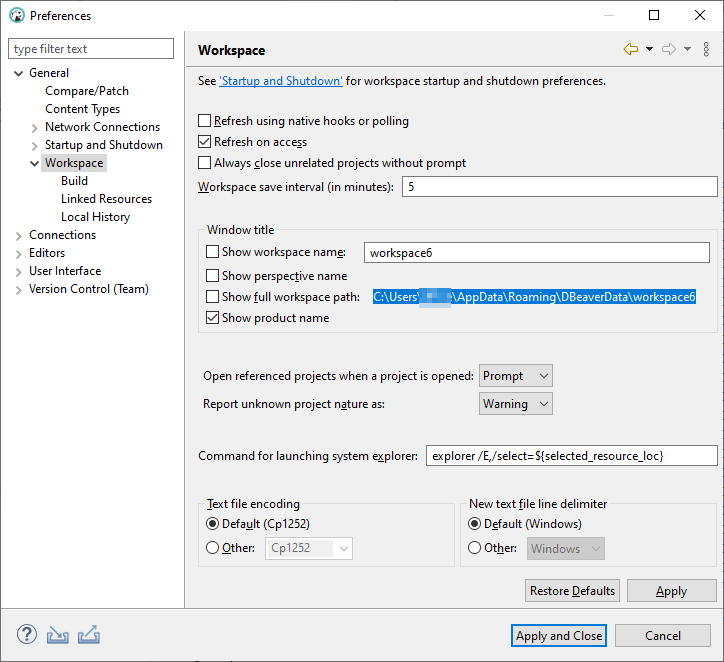
Check this path at your filesystem. You will see a ‘General’ directory. This directory contains JSON files with all your connections. And folders with your scripts and driver .jar files. Copy this ‘General’ directory to your pendrive, cloud folder, etc.
On the target computer, repeat the same steps do discover the “full workspace path”. Close DBeaver. Overwrite the ‘General’ folder with the one you copied from the source computer.
Open DBeaver again. Voilà. Everything appears as it was on your source computer.
You may also user the commands at File -> Export and File -> Import to transfer connections individually.